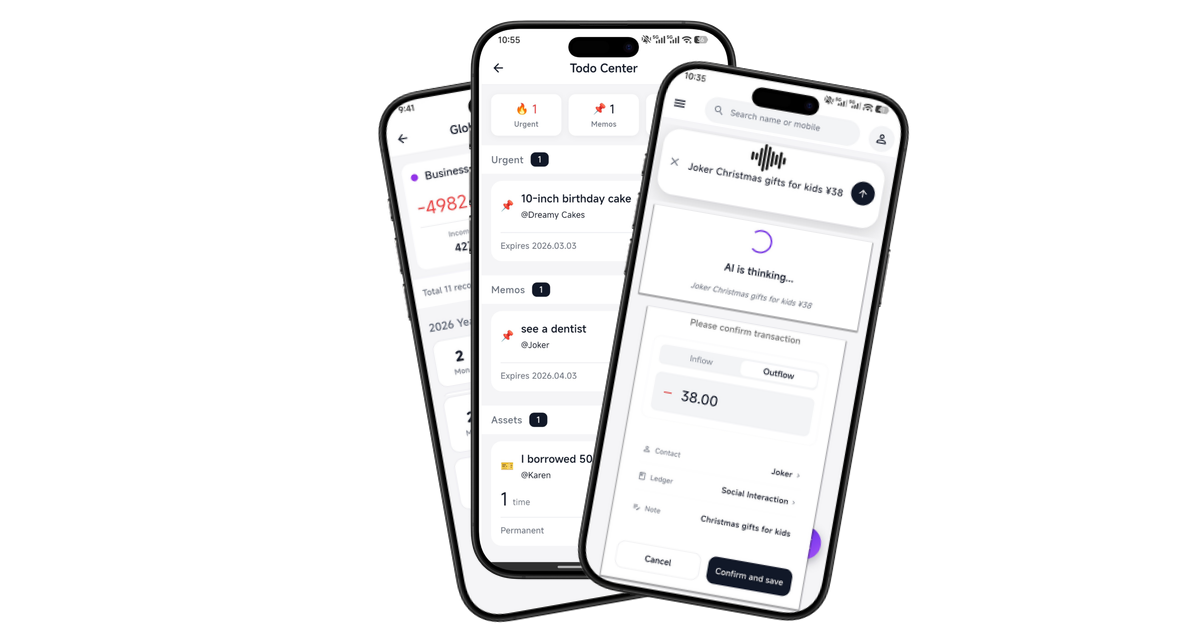
While polishing Version 1.0.9 of my indie project, Give & Take (a minimalist ledger and bookkeeping app), I encountered a classic and notoriously difficult UX design challenge.
Many small business owners use my app as a customer balance tracker to manage prepaid memberships and daily consumption. Here is the catch: Bookkeeping is a high-frequency action heavily reliant on muscle memory. Because the app’s core architecture uses a strict “immutable ledger” mechanism (records cannot be edited or deleted to ensure accounting integrity; mistakes require a reverse entry), the cost of user error is exceptionally high.
What happens when an exhausted merchant accidentally records a “Recharge” instead of a “Spend”? To save users from these costly slip-ups, I embarked on a deep UI/UX refactoring journey.
The Anti-Error Dilemma: Friction vs. Flow
Faced with high-frequency user errors, a developer’s first instinct is usually to “add a defense layer”—like a confirmation pop-up before saving, or hiding the input field behind giant “Income” and “Expense” selector buttons.
However, this violates the golden rule of minimalist productivity tools: The Flow. A business owner recording 50 transactions a day does not want to tap 50 unnecessary confirmation prompts. Good error-prevention design (Poka-yoke) should be invisible yet highly effective—pulling users back from the brink of mistakes without adding a single extra tap.
After multiple iterations, I abandoned workflow-blocking interactions and implemented a “Dynamic Visual Impact + Stateful Button” hybrid approach:
- Context-Aware Color Shifts: The user’s visual focus is always on the numbers. When the slider switches to “Spend,” the inputted amount instantly turns red and prepends a
-sign. Switching to “Recharge” turns it green with a+sign. This leverages peripheral vision for immediate, unignorable feedback. - The Minimalist Black CTA: I initially tried filling the entire “Save” button with bright red or green, but it looked like a blaring panic alarm. The ultimate solution? Keep the button background a premium, brand-consistent black. The error-prevention duty is delegated to a tiny, dynamic color-shifting icon (🟢 / 🔴) on the left, paired with decoupled dynamic text (e.g.,
Confirm · Recharge). - i18n Pitfall Avoidance: A quick tip for Flutter developers—never concatenate strings like
"Save " + variable. It’s a localization nightmare. Using a middle dot (·) or pipe (|) to separate standard verbs and custom nouns looks incredibly sleek and solves syntax inversion in other languages.
This combo adds zero extra taps, yet makes it virtually impossible for users to ignore the nature of their action the moment they hit the keyboard and tap save.
Ditching the “Default”: A Premium Fintech Palette
When first implementing the red/green dynamic inputs, I used standard Material Design Green (0xFF00C853) and Red (0xFFEF4444). Running it on a physical device, it immediately felt cheap—like a generic web game.
Pure neon greens and alarm reds cause severe visual vibration when applied to large typography or button highlights. After studying the color palettes of top-tier Fintech SaaS products like Stripe and Apple Wallet, I completely overhauled the app’s Semantic Colors:
- Assets / Income: Replaced with a cooler Emerald (
0xFF10B981). It’s restrained, elegant, and carries an expensive “cash-like” quality. - Liabilities / Expense: Softened to a modern Rose (
0xFFF43F5E). - Info / Warning: Introduced a clean Modern Blue and a deep Amber, completely avoiding industrial-looking defaults.
By slightly lowering the saturation and tweaking the lightness, even a massive + 100 on a dark-mode background looks incredibly transparent and premium, rather than glaring.
Decluttering Forms: The Art of Subtraction
As features expanded, the “Ledger Settings” page grew increasingly bloated. Explanatory texts and massive status cards squeezed together, forcing users to scroll. To compress the interface back into a single viewport, I applied drastic “subtraction”:
Progressive Disclosure
The form used to be littered with * explanatory notes (e.g., “Modifying the name will sync across all linked contact cards”). I axed them all, condensing the text behind an elegant, minimalist ? tooltip next to the label. Tapping it reveals a dark-themed popup. This single step reclaimed 30% of wasted vertical space.
Rescuing Ugly Dropdowns
The native Flutter DropdownButton destroys minimalist aesthetics. I ditched the default component, opting instead for a PopupMenuButton paired with a custom light-gray, rounded capsule container and an ↕ sort icon. It seamlessly integrates the “Default Action” setting into the form.
State-Driven UI over Spatial Occupation
Previously, a massive white card sat at the bottom of the page solely to house an “Active Status” toggle. It completely hijacked the visual hierarchy.
I introduced the semantic design concept of “Archive”: I stripped away the bulky card, turning it into a single line of text and a switch at the very bottom: Deactivate this ledger.
The UX magic lies in the linkage: Turning the switch on immediately grays out and disables all input fields above. No extra explanation is needed; users instantly understand the ledger is frozen.
Conclusion
As indie developers, it’s easy to get caught up in the high of “shipping features” while neglecting UI Semantics and user empathy.
This refactoring journey reinforced two core beliefs:
- Great design is invisible. It doesn’t force an extra tap for confirmation; it gives you certainty through a touch of Emerald green as you type.
- Do not multiply entities beyond necessity. If a disabled state communicates “unavailable,” don’t use blaring red text; if an explanation fits in a
?tooltip, don’t let it hijack the screen.
In the pursuit of perfection, adding features is easy. The true craftsmanship lies in subtraction.
“Good design is invisible; it provides the exact certainty you need, right when you need it.”
Your Smart Business & Relationship Ledger.
Say goodbye to complex spreadsheets. Manage customers, bills, and relationships with just one sentence. Fully offline, your data belongs only to you.